How to Edit Project Names in
Xactimate X1?
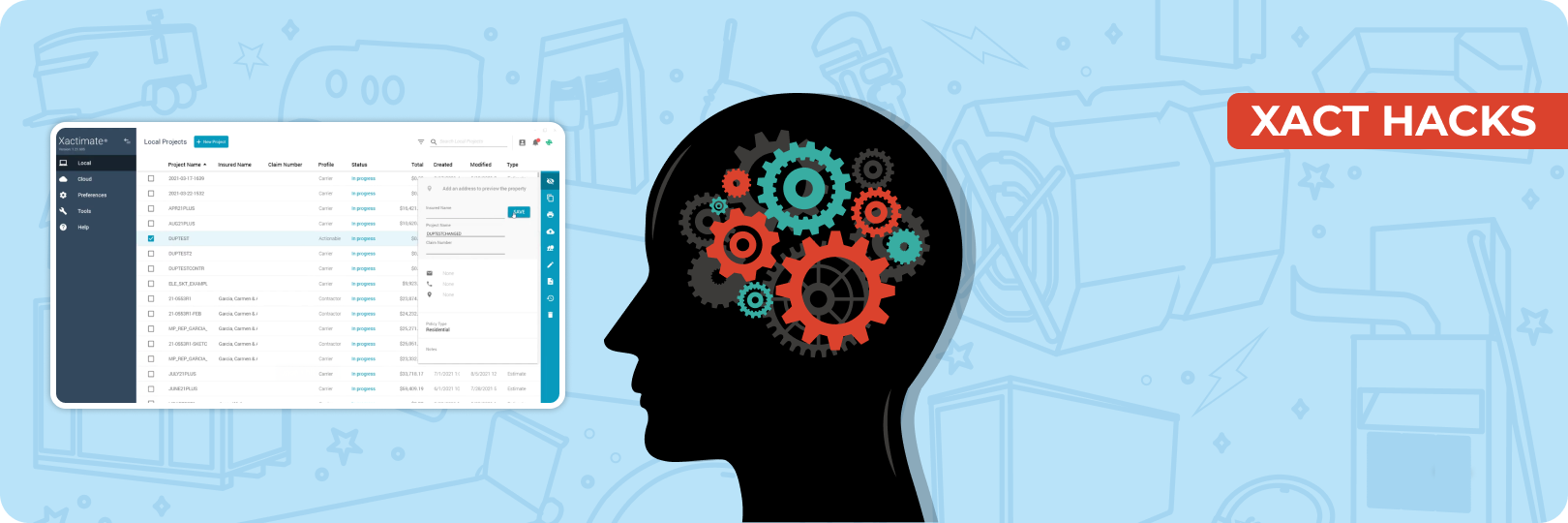
Efficient project management starts with the basics. Even small tasks, like editing a project name, play an essential role in keeping things organized. If you are new to Xactimate, X1, its interface can feel overwhelming. This article provides a clear, step-by-step guide to editing project names in Xactimate X1.
Editing a Project Name in Xactimate X1
Accessing the Project Preview Option
- Open Xactimate X1 and navigate to the Local Tab.
- The Local Tab serves as a central hub, displaying a list of your projects and estimates.
- Find the project you want to edit from the list of projects in the Local Tab.
- Click on the project to select it. This highlights the project and activates more options. You will see them in the menu bar on the right-hand side of the screen.
- Once you select a project, a Menu Bar appears on the right-hand side of the screen. This bar provides various tools and options for managing the selected project.
- At the top of the menu bar, you’ll find the Project Preview icon, represented by an “Eye” symbol.
Editing the Project Name
- Click on the Project Preview icon to open the project details screen. Here you can access and edit the project name and other relevant fields.
- In the Project Preview section, you’ll see several editable fields, including:
- Project Name: The primary identifier for your project.
- Insured Name: The name of the insured party.
- Claim Name: A secondary identifier tied to the claim.
- These fields allow users to input precise and accurate information.
- Click on the Project Name field to activate it for editing.
- Enter the new project name that reflects the changes you need to make. Be sure to double-check the spelling and formatting to ensure accuracy.
- Once you’ve entered the new project name, look for the Save button. You can find it in the Project Preview menu.
- Click Save to confirm your changes. The updated project name will immediately reflect in the Local tab and throughout Xactimate X1.
Check out the video tutorial:
The Importance of Proper Project Names
Project names act as identifiers. They help users quickly locate and differentiate between estimates. In a busy environment with multiple ongoing projects, this helps streamline workflows and reduces confusion. Furthermore, it ensures team members access the correct information without unnecessary delays.
Without proper project names, estimators and collaborators may spend excessive time searching for the right file, leading to inefficiencies and potential miscommunications. Proper project names make retrieval straightforward, improving productivity across the board.
Introducing the Actionable Xactimate Profile
The Actionable Profile is a profile within Xactimate that integrates with XactXpert. With over 3,500 Actionable Alerts, it is designed to enhance the accuracy of your estimates.
Key Features of the Actionable Profile
Live Estimating Guidance
Get real-time guidance to correct any mistakes or add missing warranted line items. This ensures your estimates are increasingly accurate and thorough.
Actionable's Industry Standard Preferences
The Actionable Profile reflects the reality of execution in the field.
Access to Actionable Macros
With over 100 macros, you can save significant time by automating repetitive tasks and maintaining consistency.
Get started with 99% off nowJoin the Actionable Profile and
Xact Best Practices Bootcamp
The Xactimate Bootcamp is the perfect opportunity for anyone looking to master Xactimate and its advanced features. Whether you’re new to the platform or a seasoned estimator, this bootcamp delivers in-depth training on key tools like instance-level rules, profile customization, and live guidance through XactXpert. With hands-on learning and real-world scenarios, participants gain practical expertise to elevate their estimating skills.
Sign up nowSummary
Editing project names in Xactimate X1 is simple. It is also critical for maintaining an organized and efficient workflow. If you want to improve your skills further, we recommend exploring the Actionable Xactimate Profile and attending the Xact Best Practices Bootcamp. With the right knowledge, Xactimate can become easier to use, ultimately improving your estimates.
About Actionable
We're a 501(c)(6) educational non-profit, meaning that everything we do goes into developing and maintaining tools and resources to help the industry thrive.
For any questions, reach out to us below: