How to expand and collapse the
guidance provided within the
XactXpert drawer
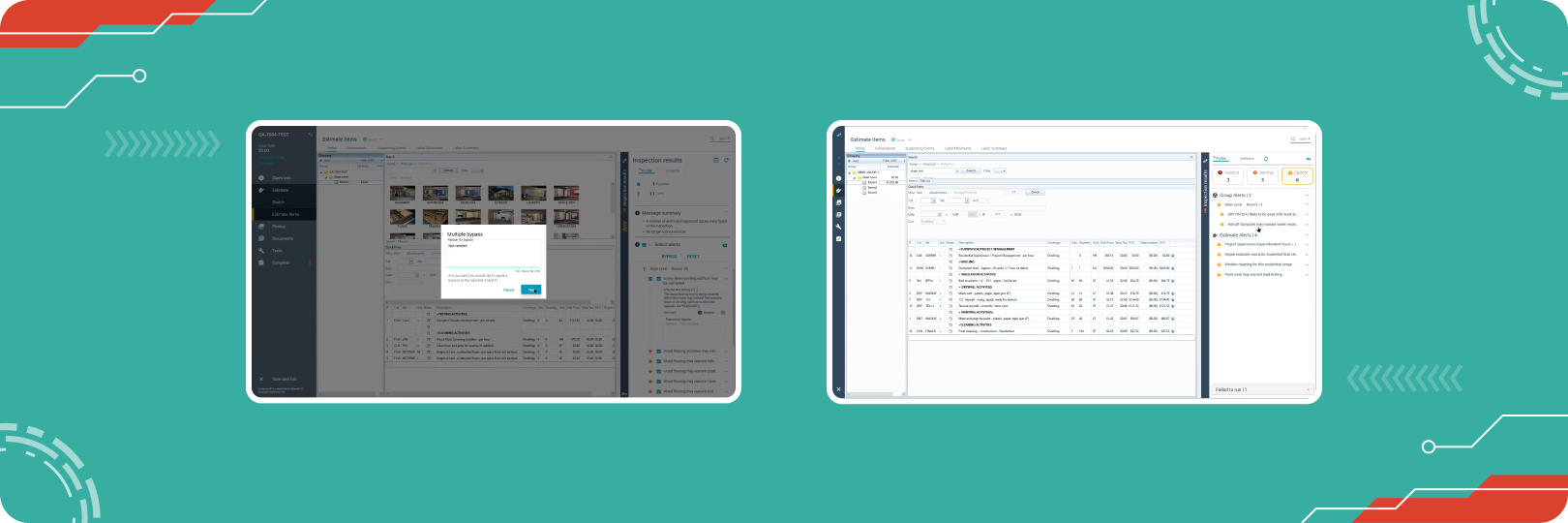
The XactXpert Drawer is a powerful tool in Xactimate that provides real-time guidance while writing estimates. It helps estimators ensure accuracy and compliance by flagging potential issues. This tool is invaluable for maintaining high standards in estimates. During our Xact Best Practices Bootcamp, we found that many estimators didn’t know they could expand or collapse the guidance in this tab.
The expand-and-collapse functionality makes it easy to navigate and focus on specific issues within the estimate. This article provides a detailed, step-by-step guide on how to use these features effectively.
Understanding the XactXpert Drawer
The XactXpert Drawer interface is located on the right side of the Xactimate screen. It serves as a home for live estimating alerts, categorized into three main types:
Violations

Violations are critical issues that require immediate attention. These alerts ensure essential standards and rules are not overlooked, safeguarding the accuracy and validity of the estimate. Violations must be resolved to be able to Print or Complete an estimate.
Warnings

Warnings highlight areas of concern that need closer examination. While not as urgent as violations, addressing these alerts helps prevent discrepancies in the estimate. Warning must be resolved or bypass to be able to Print or Complete an estimate.
Cautions

Cautions are the least severe type of XactXpert alerts. They serve as suggestions or reminders to review specific aspects of the scope. These alerts help fine-tune estimates and ensure thoroughness. Cautions do not need to be resolved or dismissed to be able to Print or Complete an estimate.
How to Quickly Expand and Collapse Violations,
Warnings, and Cautions in XactXpert
The XactXpert Drawer is designed to provide clear and organized guidance. A key feature that adds flexibility to this process is the ability to expand and collapse guidance for each type of alert. This makes navigation more efficient, especially when working on lengthy scopes or focusing on specific alert types.
How to Expand and Collapse Guidance
Locate the Alert Buttons:
Within the XactXpert Drawer, you’ll find three distinct buttons for Violations, Warnings, and Cautions. These represent the different alert types flagged by the system.
View the Alert List:
Click on any alert buttons (e.g., Violations) to expand the list of corresponding alerts. This displays detailed information about each issue, providing insights to guide your next steps.
Collapse the Guidance:
To collapse the list, simply click the same button again. This minimizes the section, declutters the workspace, and helps you focus on other tasks or alert types.
Repeat as Needed:
Expand and collapse each section independently based on your workflow. This flexibility ensures you can easily navigate and address issues without losing focus.
Are you a visual learner? Don’t worry, because Stone has explained this in a quick tutorial. Check it out.
Better, More Accurate Estimates with
The Actionable Xactimate Profile
The Actionable Xactimate Profile is a game-changer for professionals seeking accuracy and efficiency in their estimates. This innovative tool delivers live estimating guidance through 3,500 Actionable Alerts that integrate seamlessly into your workflow, leveraging the Insight Sheet Database to provide relevant, data-driven recommendations.
How it Provides Live Estimating Guidance
The Actionable Xactimate Profile acts as a sherpa within Xactimate, offering real-time alerts for potential issues in your estimates. It ensures your estimates are accurate and complete by identifying missing warranted line items, suggesting corrections, and flagging critical errors.
Omission Alerts
Omission alerts notify users when important line items are missing or when the quantities of included items are insufficient. This ensures that all warranted expenses are accounted for in the estimate.
For example:
Missing Line Items: When working on a 20-foot-high ceiling, an omission alert will remind you to add a line item for the additional cost of working at that height. This ensures that your estimate reflects the true scope of work.
Appropriate Quantities: If the quantity of a specific material or item is underreported, the Actionable Profile will flag it, helping you avoid undercharging or misrepresenting the project requirements.
Overage Alerts
Overage alerts, on the other hand, help you avoid overcharging by identifying duplicate or excessive line items that don't align with the project's scope or sketch.
For example:
Duplicate Items: If you add both drywall and texture as separate line items, even though the drywall line item already includes texture, an overage alert will prompt you to remove the redundant item or provide clarification using an F9 note.
Excessive Quantities: If a quantity exceeds what is justified by the sketch or project scope, the alert will notify you, helping you maintain accuracy and fairness in your estimate.
Try it nowLearn More with the Actionable Profile and
Xact Best Practices Bootcamp
The Actionable Profile and Xact Best Practices Bootcamp go beyond basic tutorials. It provides an in-depth learning experience tailored to equip participants with real-world skills. This comprehensive training program empowers both beginners and experienced users, helping them master the full potential of features that Xactimate offers.
Register nowAbout Actionable
We're a 501(c)(6) educational non-profit, meaning that everything we do goes into developing and maintaining tools and resources to help the industry thrive.
For any questions, reach out to us below: