How to Password Protect Your
Matterport Scans?
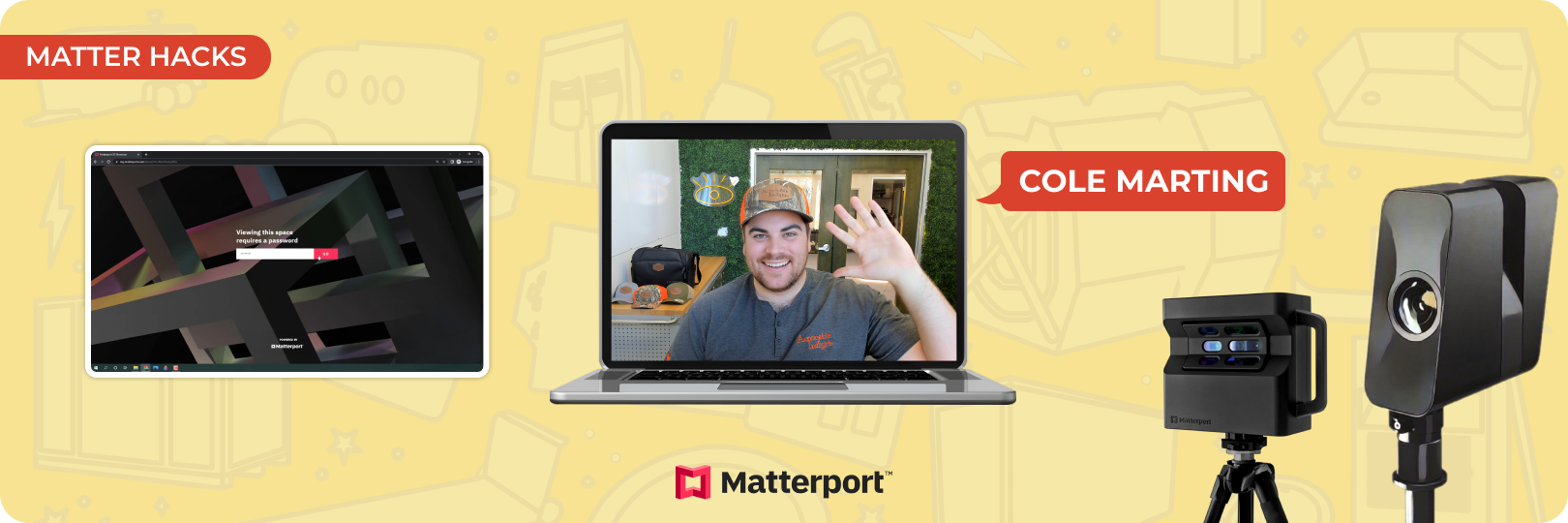
Today, we are going to discuss one of the most important Matterport tips: securing your scans. When dealing with sensitive property data, you must secure your Matterport virtual tours. Password protection ensures that only authorized users can access your Matterport 3D tours. This guide provides step-by-step instructions on how to add a password. You will also learn why security matters and how to share scans safely.
Step-by-Step Guide to Password Protecting
Your Matterport Scans
Password protecting your Matterport 3D tour ensures authorized access to your scans. This is one of the most effective Matterport tips for protecting sensitive data. Follow these steps to enable password protection for your Matterport virtual tour.
1. Accessing Your Scan on Matterport
To begin, log in to my.matterport.com. This is where all your Matterport 3D tours are stored and managed. Once logged in:
- Navigate to the Library section to find your scan.
- Select the Matterport virtual tour you want to protect.
2. Enabling Password Protection
- Open the selected scan and click the Share button in the top-right corner.
- A pop-up window will appear with different sharing options. Locate the Privacy Settings section.
- Choose the Password Protect option.
- Enter a strong password. Avoid using common passwords like "123456" or "654321"
- Click Save to apply the changes. The password is now active, restricting access to your Matterport 3D tour.
3. Testing Password Protection
Now, here’s another critical Matterport tip. You need to verify that the password is active.
- Copy the generated link.
- Open an incognito browser window (Ctrl+Shift+N on Windows, Command+Shift+N on Mac).
- Paste the link into the address bar and hit Enter.
- When prompted, enter the password you set earlier. If the scan only loads after entering the password, it indicates proper protection.
4. Updating or Removing the Password
If you need to change or remove the password:
- Go back to my.matterport.com and select the scan.
- Click Share and navigate to Privacy Settings.
- Delete the current password and enter a new one if updating. If removing the password, deselect the Password Protect option.
- Click Save to confirm the changes.
- Copy the updated link and share it only with authorized viewers.
Why Password Protection Matters?
Password protection is an essential security measure for anyone using Matterport 3D tours. Without it, anyone with the link could access your scan. This could expose sensitive information. Password protection ensures only authorized access to your Matterport virtual tour. Instead of making scans publicly available, you can provide access only to those who need it. This is one of the best Matterport tips for maintaining professional security standards.
Additional Matterport Tips for Secure Sharing
There are additional steps you can take to keep your Matterport virtual tour secure:
Use Strong Passwords
Include a mix of letters, numbers, and special characters.
Update Passwords Regularly
Change passwords of commonly used scans periodically. This ensures that only current stakeholders can access your Matterport scans.
Restrict Sharing
Limit access to only those who need it. The fewer people with access, the lower the risk of unauthorized sharing.
By following these Matterport tips, you can share your scans while ensuring their security.
Introduction to Matter Hacks
Matter Hacks is a series brought to you by Actionable. It encompasses educational content for professionals looking to refine their Matterport skills. Matter Hacks offers practical Matterport tips in the form of micro-content. We cover topics from improving scan accuracy to exploring features. If you want to learn Matterport one short video at a time, Matter Hacks is your go-to series.
Explore more Matter HacksBecome a Matterport Expert in 4.5 Hours with AIMC
The Actionable Matterport Certification (AIMC) course offers structured training to enhance your skills. This certification focuses on how to leverage Matterport 3D tours for business success.
In only 4.5 hours, this course equips you with the knowledge to:
- Scale training and implementation across your company.
- Maximize Matterport technology for sales, operations, and risk management.
- Improve client retention by delivering high-quality, secure Matterport virtual tours.
By completing AIMC, you’ll gain the expertise to fully use this technology to your advantage.
Sign up nowConclusion
Adding a password to your Matterport virtual tour is an easy way to secure your data. It ensures that only authorized users can access your scans, protecting sensitive data. Regularly updating passwords and sharing them only with essential stakeholders. By following these Matterport tips, you can keep your scans secure and private.
About Actionable
We're a 501(c)(6) educational non-profit, meaning that everything we do goes into developing and maintaining tools and resources to help the industry thrive.
For any questions, reach out to us below: