Import and Export a Scan from the
Matterport Capture App
Not once, not twice, but many times, we forget to bring the device we need to capture Matterport scans. We’re sure that it has happened to you too. Not only that, sometimes, you need the scans on a different device from the one used to capture them. Fortunately, you can now import and export scans between devices using the Matterport Capture app. How? Without further ado, let’s dive in.
Step-by-Step Guide to Exporting Data
We’ll show you how to export the data from the capture device to the cloud, allowing you to import it onto another device from the cloud. For this tutorial, we’re using an iPad as our exporting capture device.
Open the Matterport Capture App
This is the obvious first step. pen your Matterport Capture app, and you’ll see all the scans captured on the device.
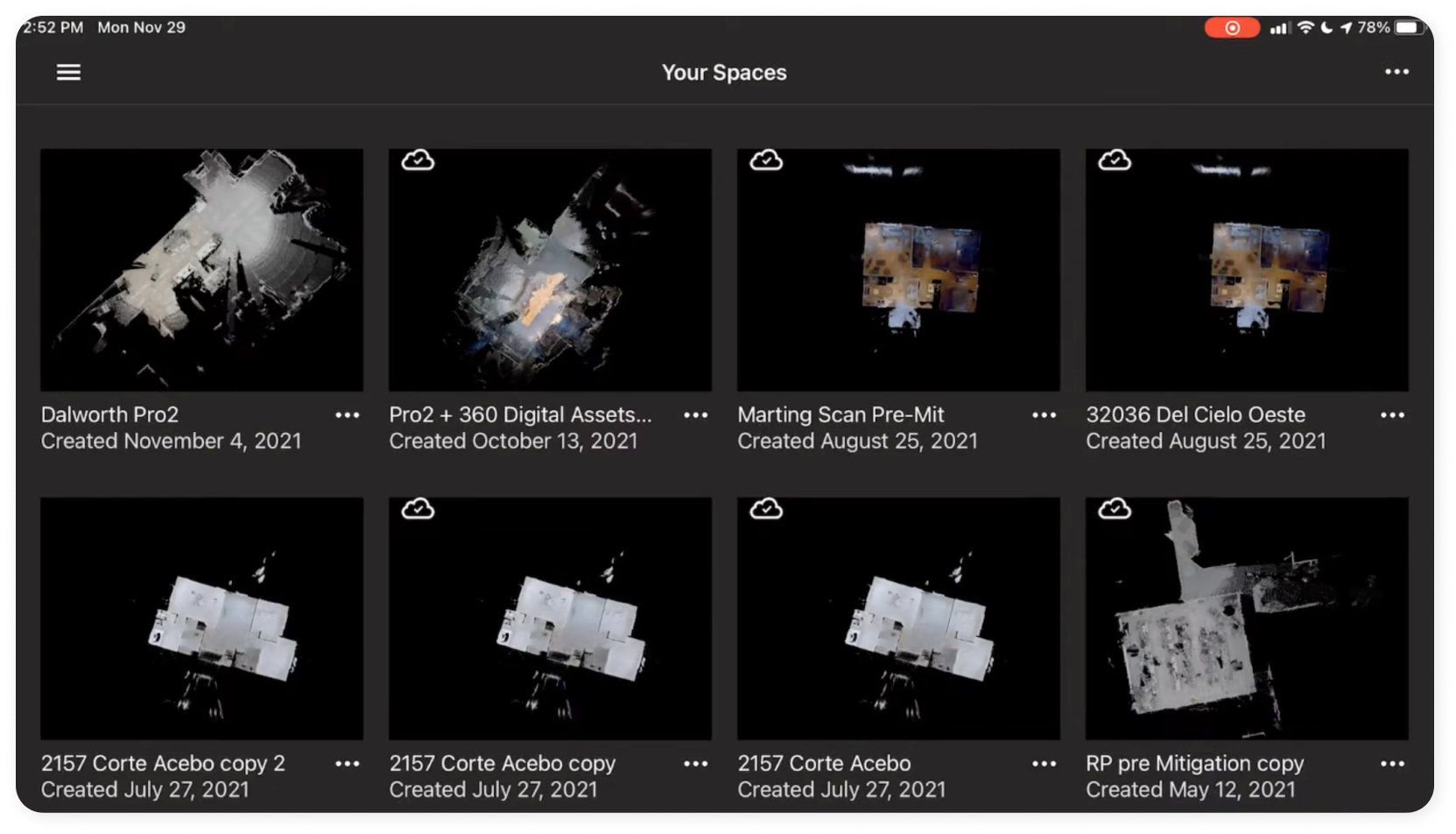
Select The Scan
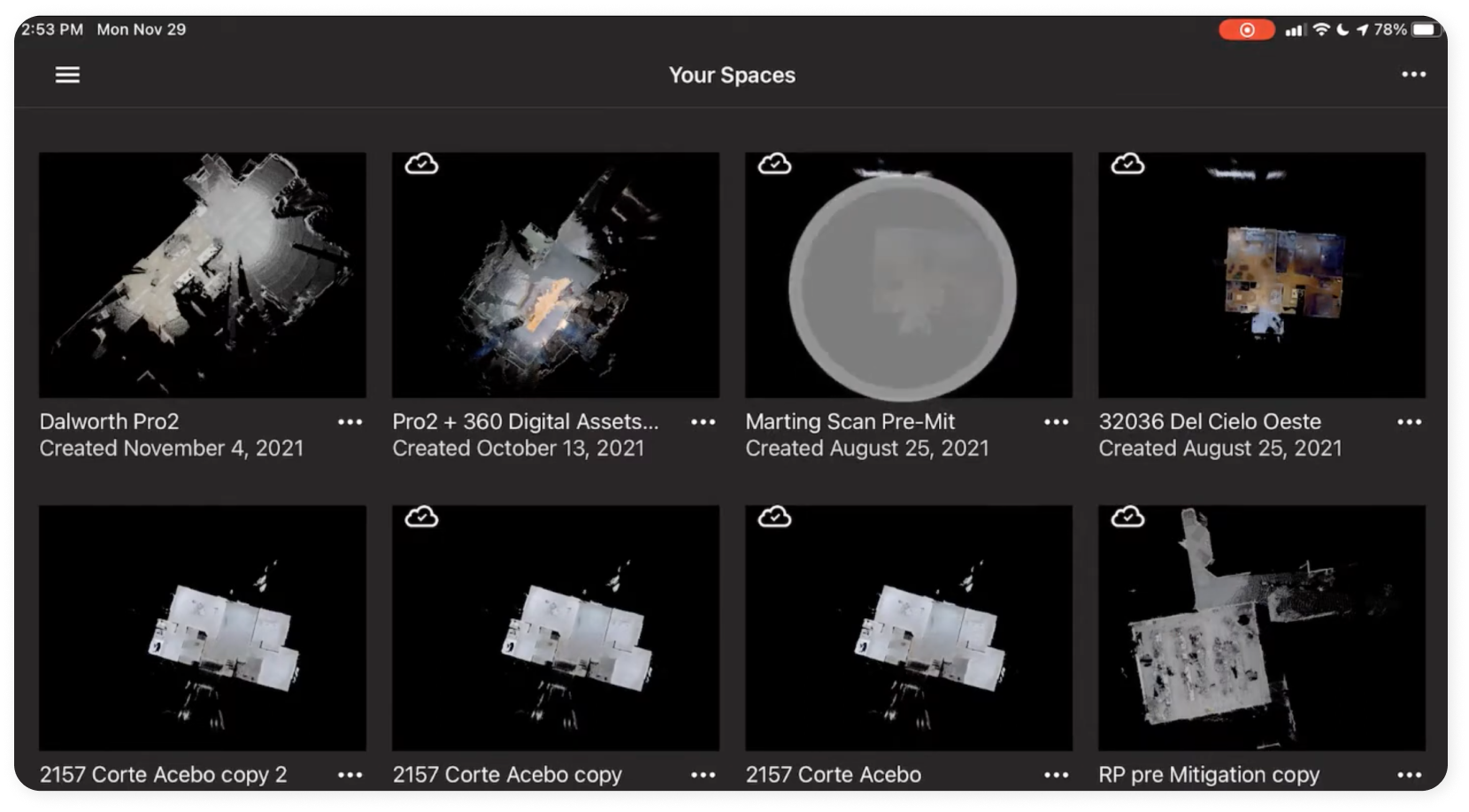
From the scans you have in the app, choose the one you want to export. Make sure the scan name is unique and not similar to others. This way, you can easily find it while importing it.
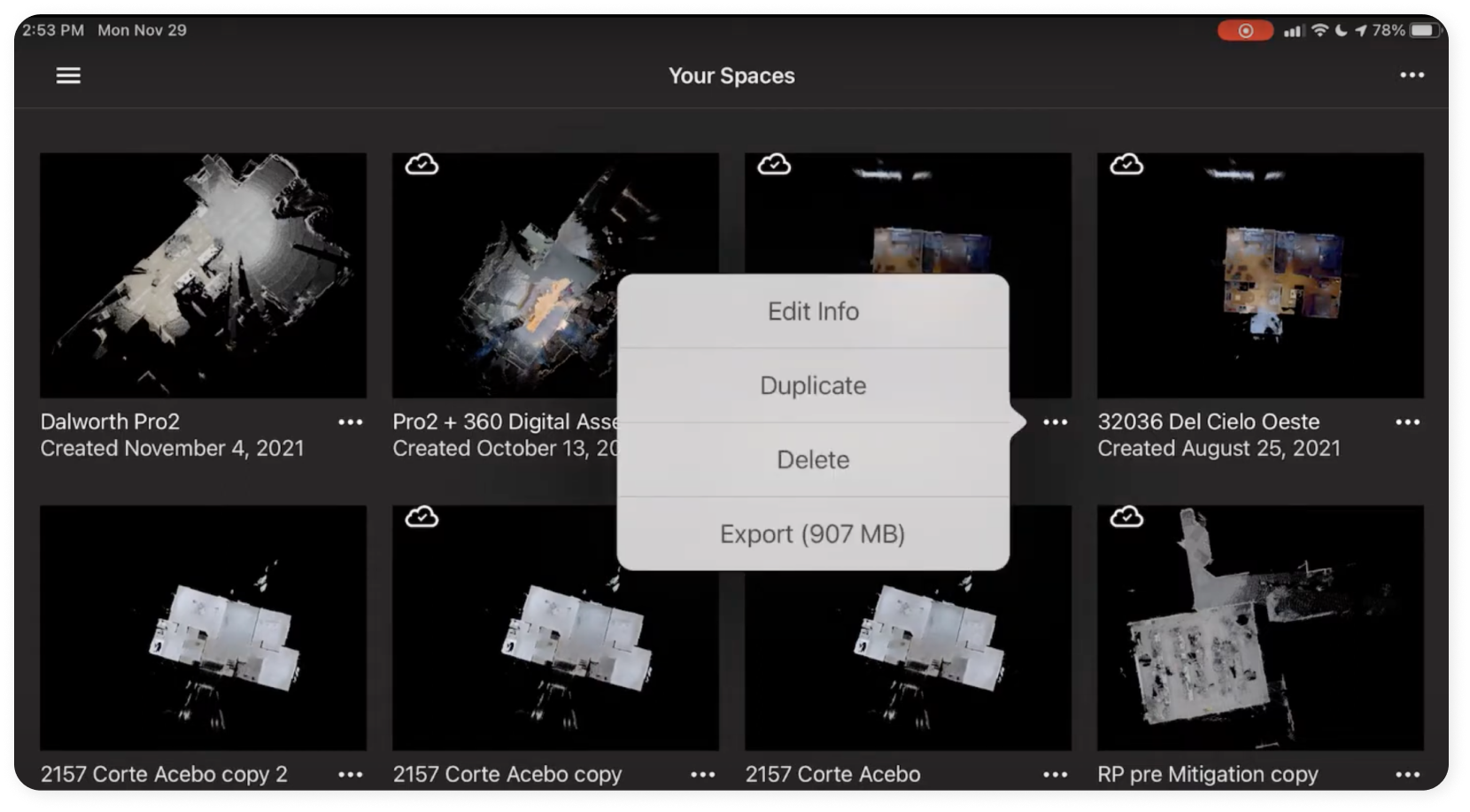
Click The Ellipses And Choose "Export."
Click on the three dots (ellipses) at the bottom of the selected scan. A menu will appear—select "Export." The file size will be shown, and the app will archive the file into a zip folder. This may take a few minutes depending on the size of the scan and your device’s processing power.
Save & Upload The Scan
Once the file is archived, you’ll be given options to save it locally or upload it to cloud platforms. Here we are uploading it on Google Drive.
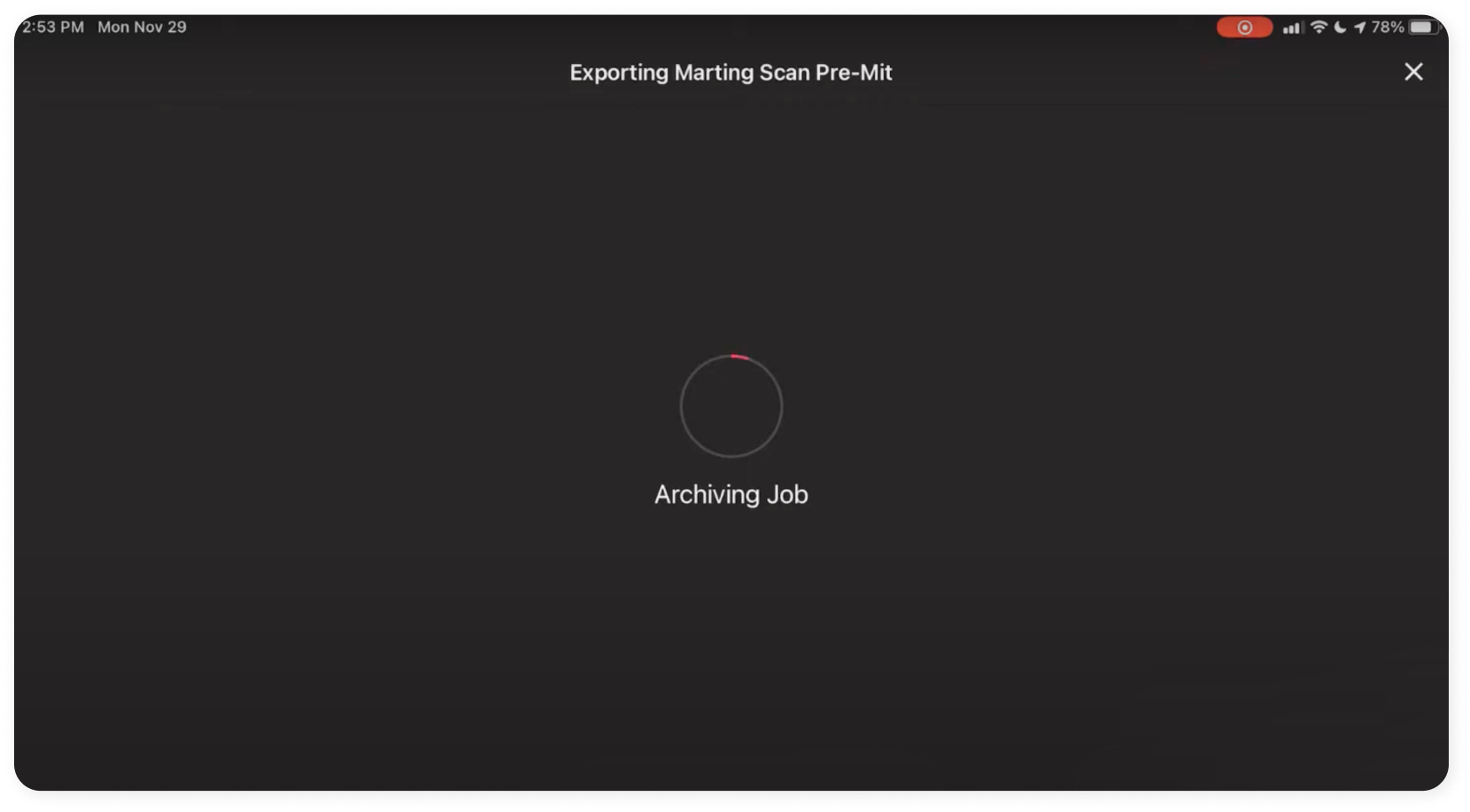
With the file successfully uploaded, the export process is complete.
Step-by-Step Guide to Importing Data
Now, let’s import the scan from the cloud to another device that has the Matterport Capture App. For this tutorial, we’ll be using an iPhone. To import the data from the cloud, you need to make sure that the relevant cloud account is logged on your device.
Choose “Import” from the App Menu
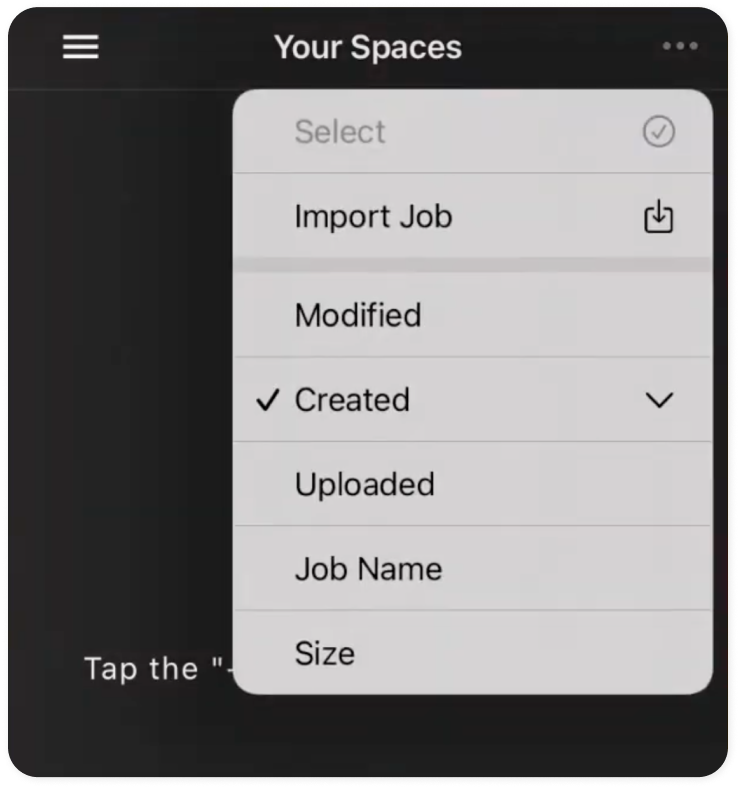
Once you open the app, click the ellipses (three dots) in the top-right corner, and select “Import” from the menu.
Import from .Zip Archive
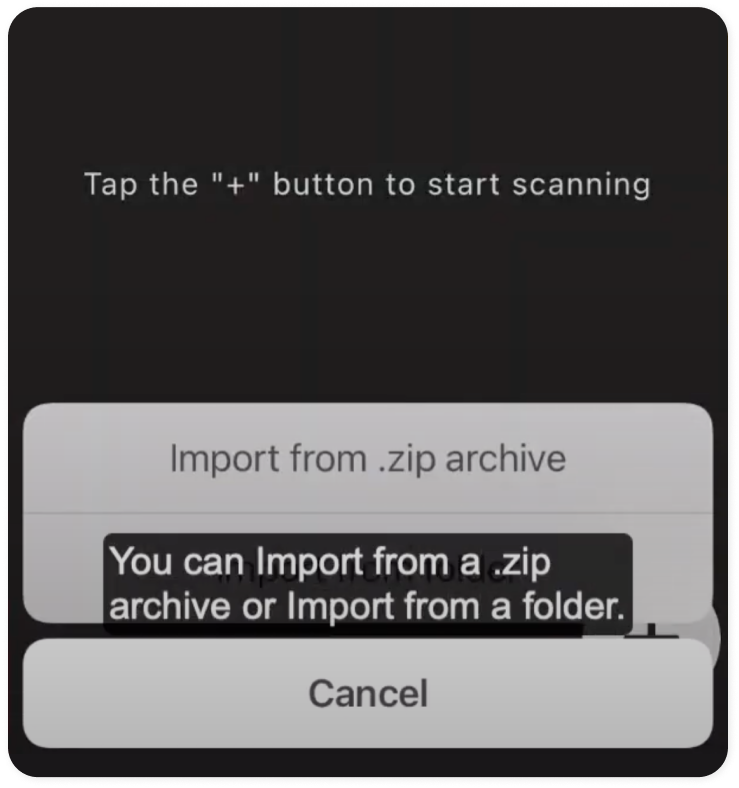
After selecting “import”, the app will show you two options—import from a .zip archive or file location. Choose the former to access your cloud account.
Select And Unzip The File
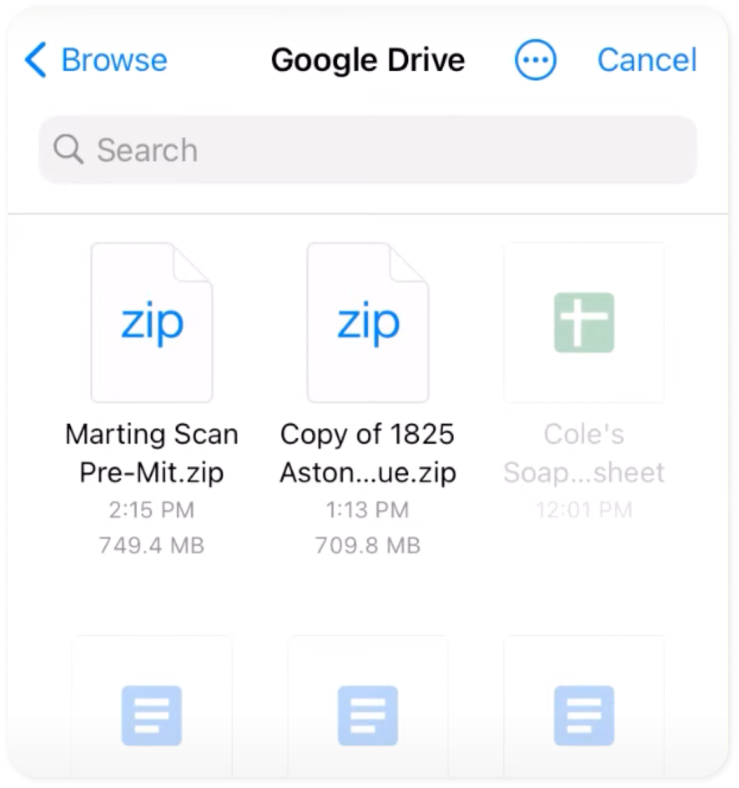
From the cloud, choose the file you want to import. Remember the unique name you gave it? This will come in handy when searching for the file you want to import. Select the file, and the app will automatically unzip and import it.
Verify The Scan
Once unzipping is complete, your scan will appear in the dashboard. From here, open the scan and make sure you do not close the app while it opens and updates the scan. This may take a few minutes, so wait patiently. After loading is finished, you can easily view your scan.
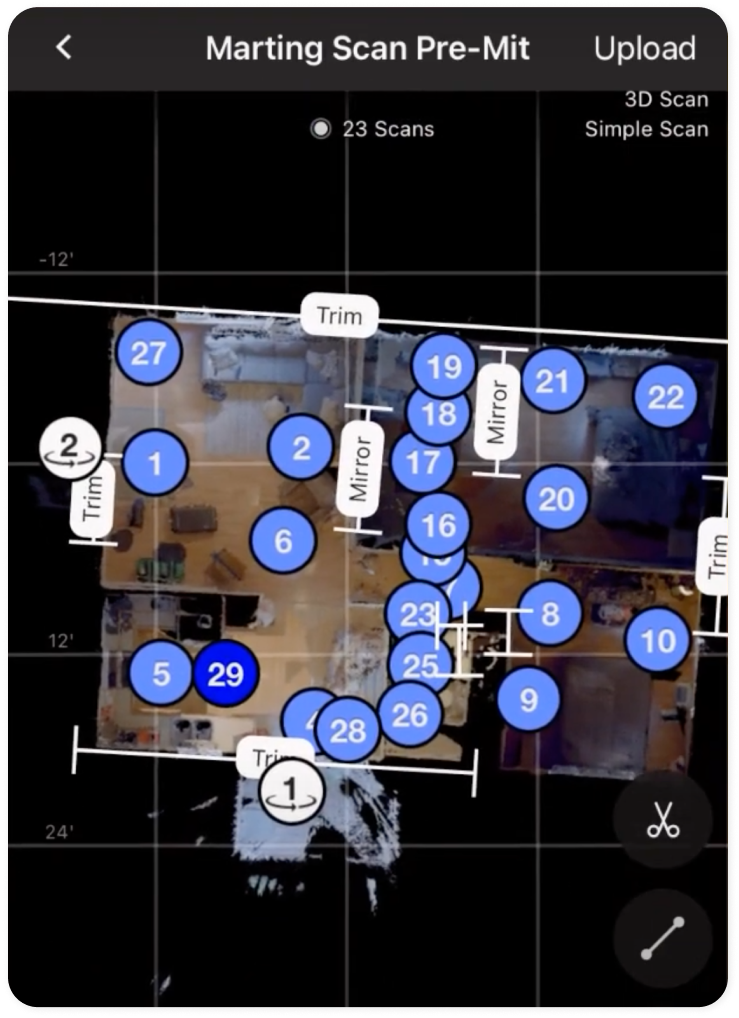
And that's it! You’ve successfully exported your scan from one capture device to the cloud and imported it into another device.
Benefits & Practical Applications
Being able to export and import the scans between devices unlocks endless possibilities. Here are some of the most beneficial and practical applications of this process.
Flexibility with On-site Capture Devices
First of all, the biggest advantage is that you don’t have to worry about having the same device on-site. Whether you have forgotten it, the battery is not charged, or the device is unavailable, this method provides the solution. Simply take the scans from the available device and later transfer the data to the device of your choice.
Scheduling Multiple Scans Without Device Limitations
Teams can now manage multiple scans simultaneously without the logistical hassle of ensuring the same device is available at every location. This improves coordination between team members, as they can seamlessly transfer data between their devices, speeding up the entire workflow.
Save Time
For contractors or restoration professionals, this feature saves valuable time. Whether you’re juggling different sites or working with a large team, the ability to import and export scans across devices ensures that your data is always accessible without being restricted to a single device.
Matter Hacks
Matter Hacks is a series started by Actionable that covers the best Matterport tips and tricks. From unique geospatial technology applications to exploring the various features, we cover everything you need to know about Matterport in quick tutorials. If you want to view the video of the tutorial instead, jump right in.
For more tutorials, visit our channel.
Further Your Education in New Tools & Tech
Want to master Matterport’s game-changing technology? We have just the certification for you. With the Actionable Matterport Certification (AIMC), you will learn to use this revolutionary technology the way it is meant to be used. It will further help you scale the training and implementation across your company and prepare you to leverage all aspects of this technology as it relates to sales, operations, business development, risk management, client retention, and more.
Check it out now